

You can also trigger your Agents automatically when files in Google Drive are created, modified, or deleted. Learn more about Google Drive triggers.
Set up Google Drive as a Knowledge source
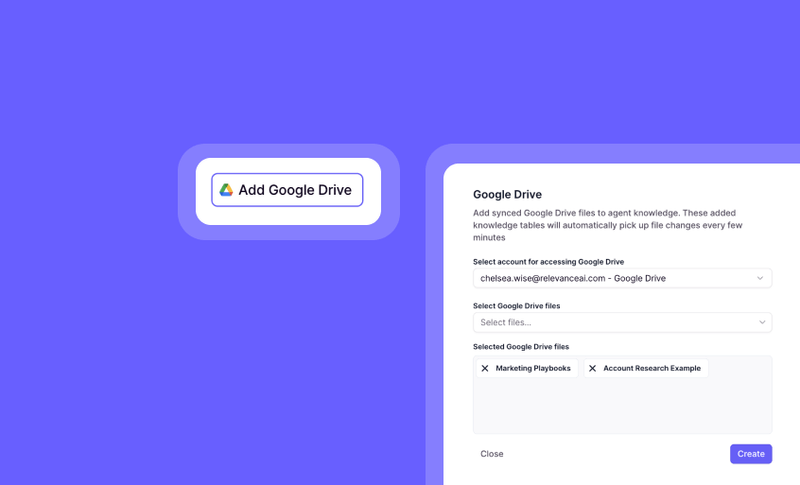
- Click ‘Knowledge’
- Click ‘Add Google Drive’
- Select or add the Google Drive account you want to access
- Select the Google Drive files you wish to have the Agent read
- Once you’ve selected the files you want to add as Knowledge, click ‘Create’
- Choose how you want the Agent to use this Knowledge on the next screen
Frequently asked questions (FAQs)
Is there a file size limit for Google Drive files added to Knowledge?
Is there a file size limit for Google Drive files added to Knowledge?
Yes — the limit is 50MB. If you select a file larger than that, you’ll get an error telling you it’s too large; compress the file or pick a smaller one.
How often do Agents fetch data from Google Drive?
How often do Agents fetch data from Google Drive?
Connected Google Drive files sync automatically every 15 minutes, so your Agents reference the latest version without manual updates.
What should I do if my Agent fails to fetch data from Google Drive?
What should I do if my Agent fails to fetch data from Google Drive?
If your Agent fails to fetch data, you’ll see an error notification indicating the failed fetch. You can check the specific file that caused the issue and ensure it’s accessible and within the size limit. If the problem persists, try reconnecting your Google Drive or reach out to support.